
How to Easily Import GPX Routes to Garmin Watch
Quick guide to uploading GPX paths to a Garmin
3 ways to transfer a GPX path to a Garmin watch: via Computer, iPhone (iOS) or Android.
Upload GPX with a Computer
STEP 1 OF 3: Access Courses
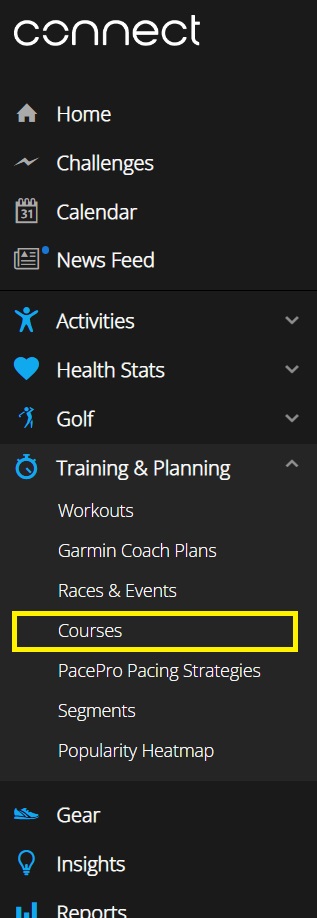
On your Garmin Connect account (website), in the "Training & Planning" section, click on "Courses".
STEP 2 OF 3: Import the GPX
Choose "Import" and upload the GPX file previously downloaded to your PC. Then press "Get Started", and select a course type (e.g., "Running", "Trail Running", etc.).
Customize choices like the title or enabling turn notifications on your device.
STEP 3 OF 3: Send to Device
The course is now uploaded to your account and will also be visible in your smartphone app. Send the course to the watch (via the Garmin Connect app on your phone or via cable with Garmin Express).
Sync your watch to make it visible on your device.
On the watch, select the activity (e.g., "Run"), then select "Options" and "Courses" to load the course.
Upload GPX via iOS iPhone
STEP 1 OF 2: Open the GPX file
Click the GPX link to download (or locate the GPX file already saved in "Files").
When the file is displayed, tap the "Share" icon (the square with the arrow pointing up).
STEP 2 OF 2: Open in Connect
From the list of apps, scroll until you find and select the "Connect" app (the Garmin icon).
The app will open automatically, asking you to choose the course type (e.g., "Running"). Save the course, then send it to your device and sync the watch.
Upload GPX via Android smartphone
STEP 1 OF 1: Open with Connect
After downloading the GPX file, open it from your "Notifications" panel or find it in your phone's "Downloads" folder.
When asked "Open with which app?", select "Garmin Connect".
Follow the same instructions as the iOS version: choose the course type, save, send to device, and sync.
